

G-W Assessment Canvas: Print Assessment

Last updated: Oct 09, 2026
885
views

To print a PDF version of the assessment for distribution to your students, there are 2 options:
- From the assessment page, select the "Print" button.
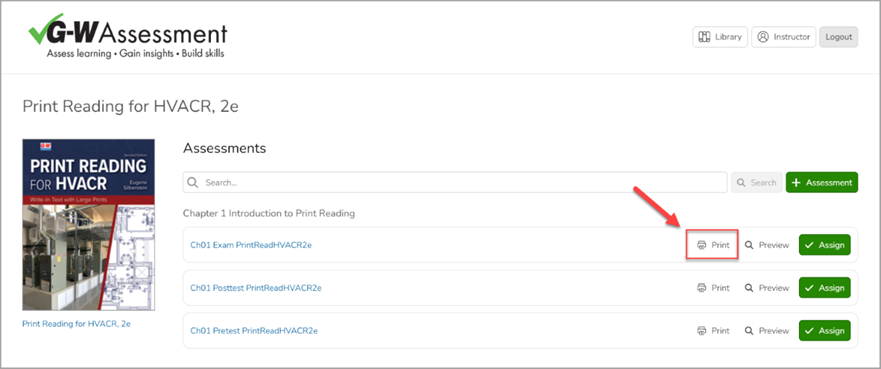
- From the preview screen, select the assessment bank link, then select "Print":
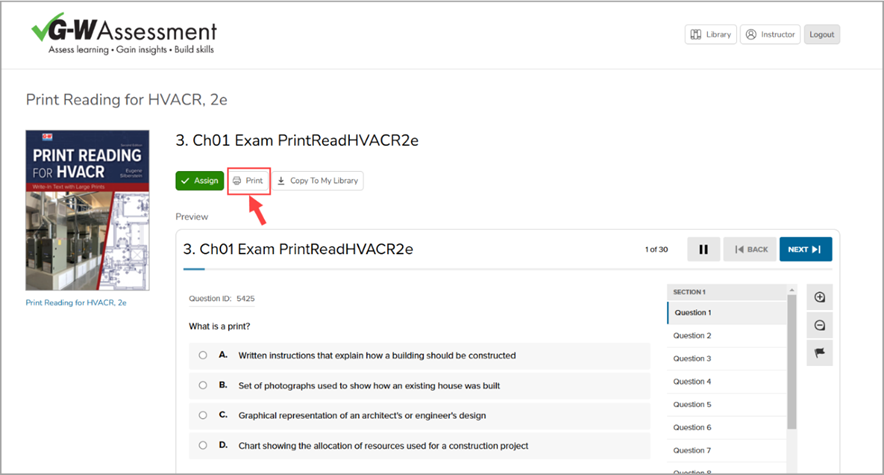
- Selecting "Print" will open a dialog box.
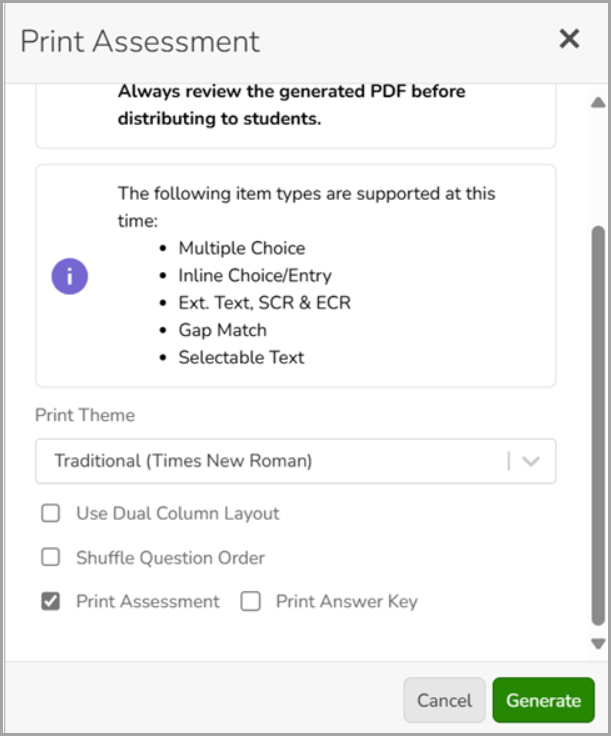
- To customize your printed assessment:
- Select a print theme.
- Choose whether to use a dual column layout.
- Select Shuffle Question Order to randomize the questions.
- Select whether to print the assessment, answer key, or both.
- After making your selections, select the "Generate" button to create a PDF version of your assessment. Once generated, select "Download Assessment" to download the PDF to your computer. If Print Answer Key was also selected, select the "Download Answer Key" button to download the answer key PDF separately.

