

G-W Assessment Brightspace: Create Custom Assessment

Last updated: Jul 27, 2026
1309
views

G-W Assessment offers a variety of pre-built, learning outcome-aligned questions. You can use these to create assessments like reviews, midterms, or finals. Alternatively, if you need custom questions for your assessments, you can create those as well.
Create a Custom Assessment with Pre-Built G-W Items
-
To create your own assessment with pre-built G-W items, select the "+ Assessment" button on the Assessment page.

- To add pre-built assessment questions, select "Browse Items" in the Assessment Editor.

- Use the filters on the left to narrow your search or enter a keyword on the search field to begin your search.

-
Select an item to preview it.
-
Check the box next to the items you want to add to your assessment or select ✓All to add all the items from your search results. Then, select the Select # Items to add the items into your assessment.

-
Once you have finalized the customization of your assessment, select "Save Assessment" to save your changes.

Creating New Custom Items
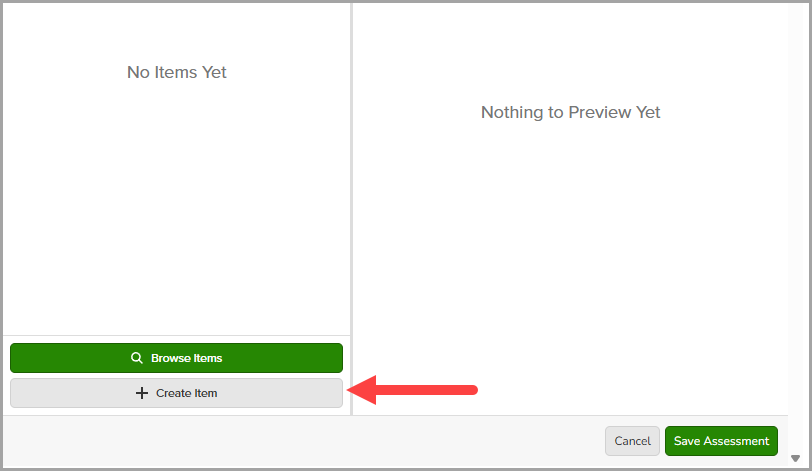
- To create your own custom questions, select + Create Item.
- In the Item Editor, start by giving your item a title:

- To add a new assessment item, select on + Question. A dropdown will appear displaying various question types. Select the desired question type. (Note: If you are delivering this assessment as a print only format, only the following question types are supported: Multiple Choice, Inline Choice/Entry, Ext. Text SCR & ECR (Essay), Gap Match and Selectable Text.

- Use the Guide Me feature for a quick tutorial of the question type.


- Once you have created your item, select "Save" to save the item for your assessment.

