


When creating a class in Brightspace, you will be prompted to select either the New Content Experience or stay in the Classic (Old) Content Experience. While similar, the location of some features is different in the New Content Experience. This document will provide guidance for both experiences but be mindful of your selection and the section you are in for the best experience.
Important Note: Only one instructor can connect to G-W Assessment per course. Co-teachers and multiple course instructors in a single G-W Assessment course are not currently supported.
Important: Students are required to have an EduHub LMS-Ready subscription to access any G-W Assessments integrated into D2L Brightspace.
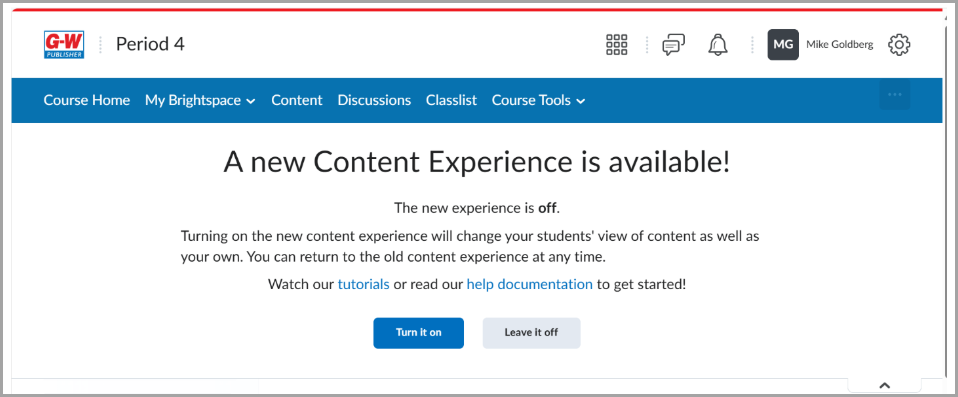
Classic (Old) Content Experience
Upon logging into Brightspace, navigate to your respective course where G-W Assessment has been integrated by your LMS administrator.
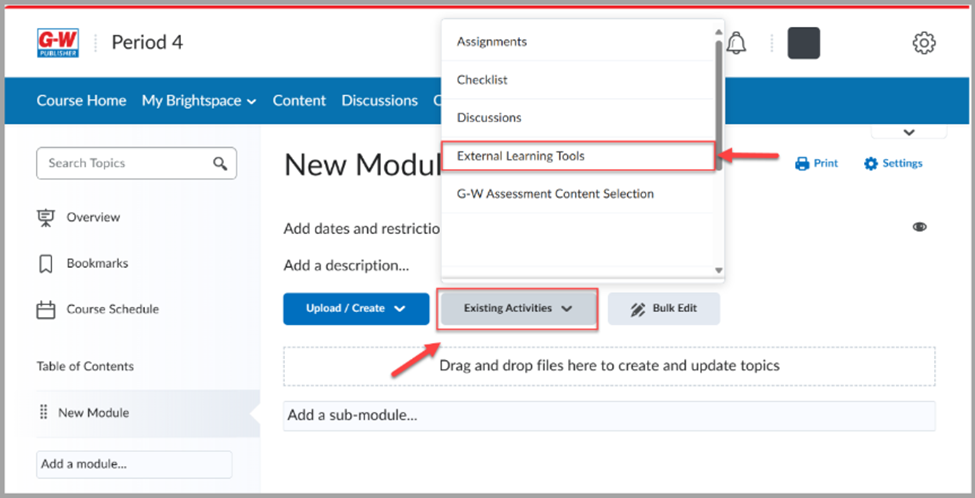
- Select the "Existing Activities" drop down and then select "External Learning Tools".
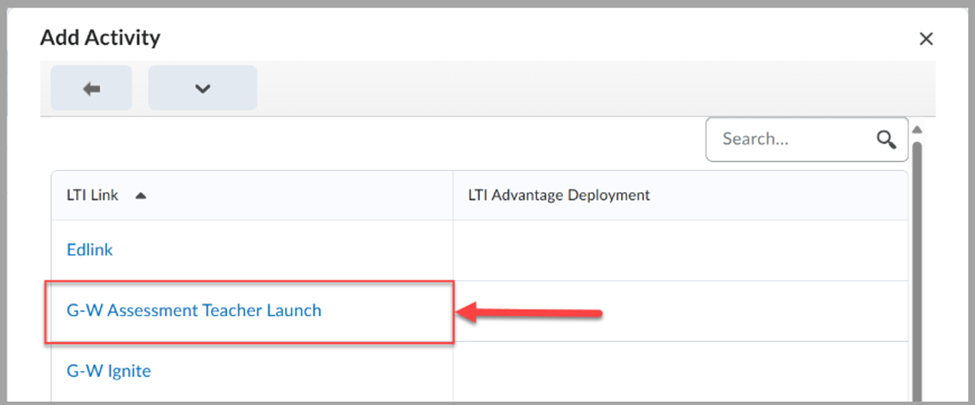
- Select "G-W Assessment Teacher Launch".
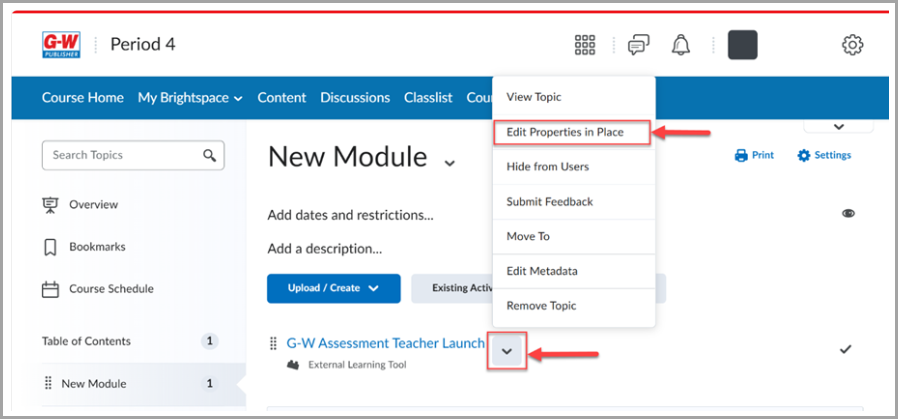
- To make this Teacher Launch invisible to students, select the karat (
 ) button, then select "Edit Properties in Place".
- Select the eye (
 ) icon and toggle the visibility to "Hidden".
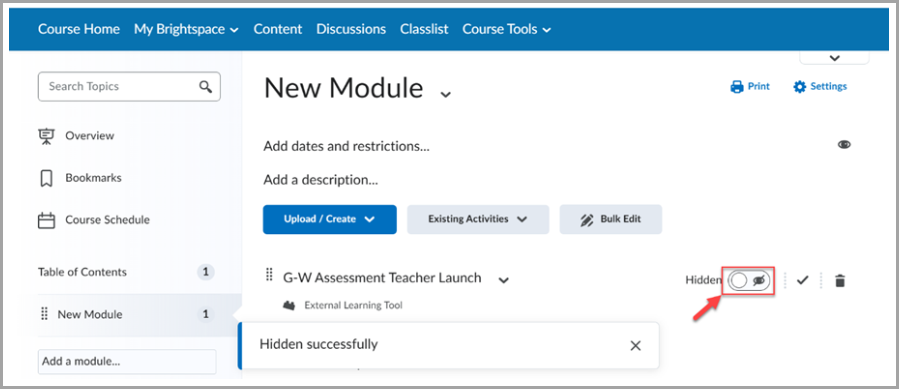
- To make this Teacher Launch invisible to students, select the karat (
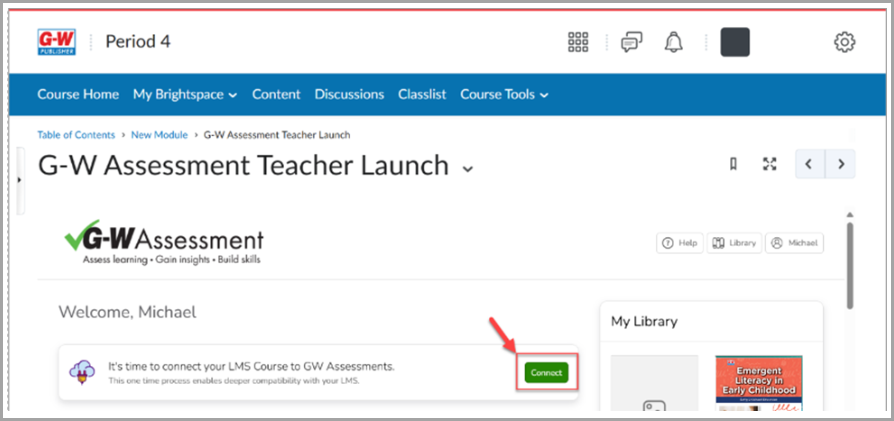
- Select "G-W Assessment Teacher Launch" and then select "Connect".
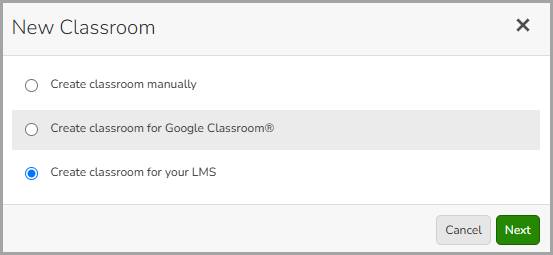
- In the New Classroom modal, select "Create classroom for your LMS" then select the "Next" button.
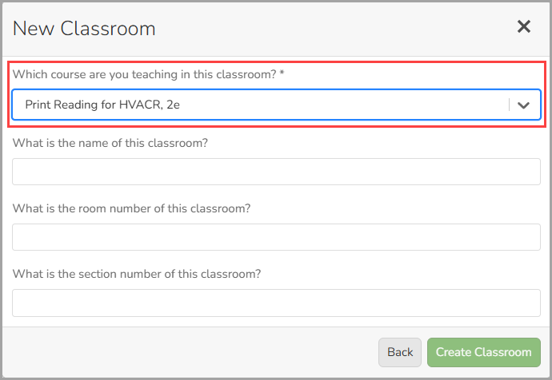
- From the drop down, select the course you will be using with your class.
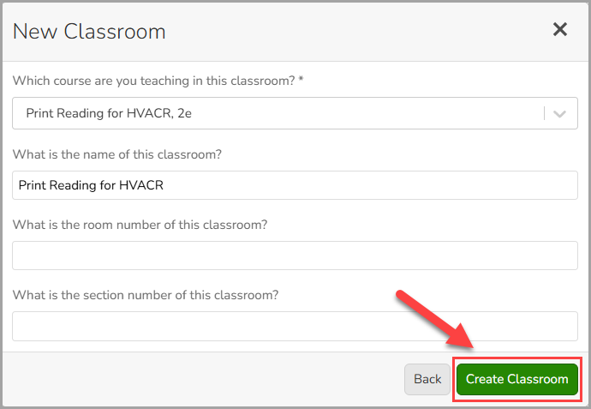
- Enter the name for your classroom then select the "Create Classroom" button. You can also add a room number and section or leave those fields blank.
New Content Experience
Upon logging into Brightspace, navigate to your respective course where G-W Assessment has been integrated by your LMS administrator.
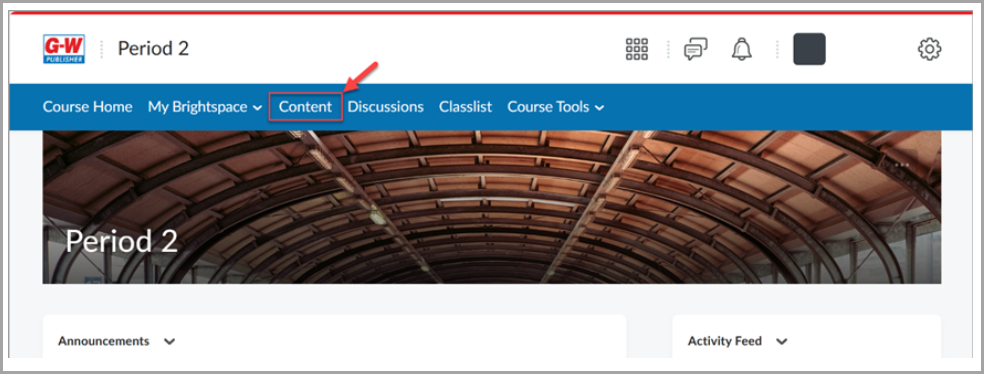
- Select "Content" from the task bar.
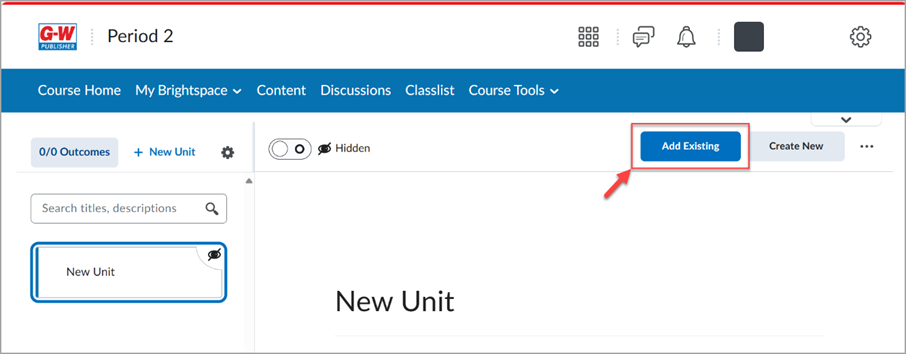
- Select "Add Existing".
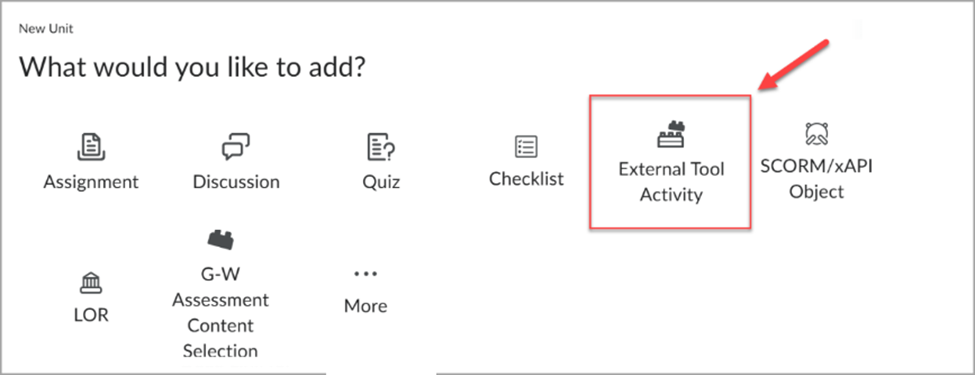
- Select "External Tool Activity".
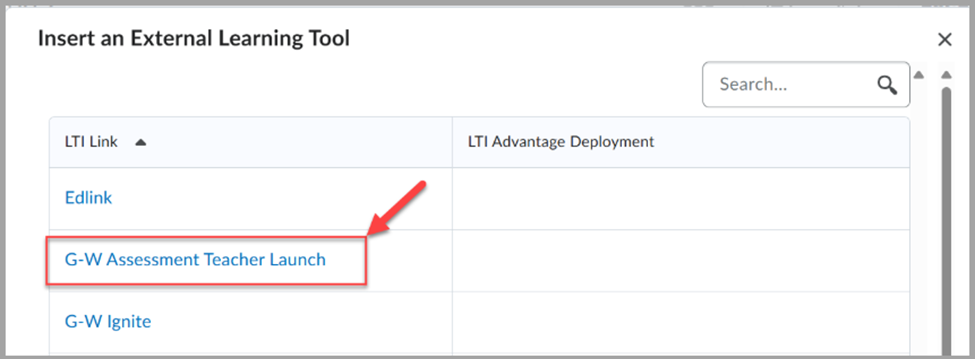
- Select "G-W Assessment Teacher Launch".
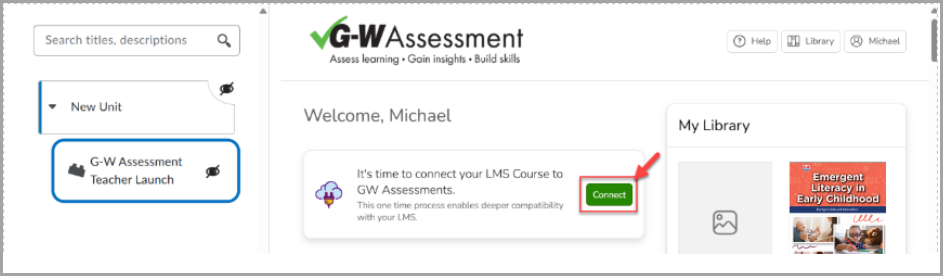
- Select "Connect".
- In the New Classroom modal, select "Create classroom for your LMS" then select the "Next" button.
- From the drop down, select the course you will be using with your class.
- Enter the name for your classroom then select the "Create Classroom" button. You can also add a room number and section or leave those fields blank.

