

G-W Assessment Brightspace: Create Assignments in Brightspace with G-W Assessment

Last updated: Oct 09, 2026
989
views

To watch a video tutorial on How to Create an Assignment in Blackboard Learn Using G-W Assessment, click here.
Classic (Old) Content Experience
To create an assignment using G-W Assessment in Brightspace:
- Select "Content" from your course screen
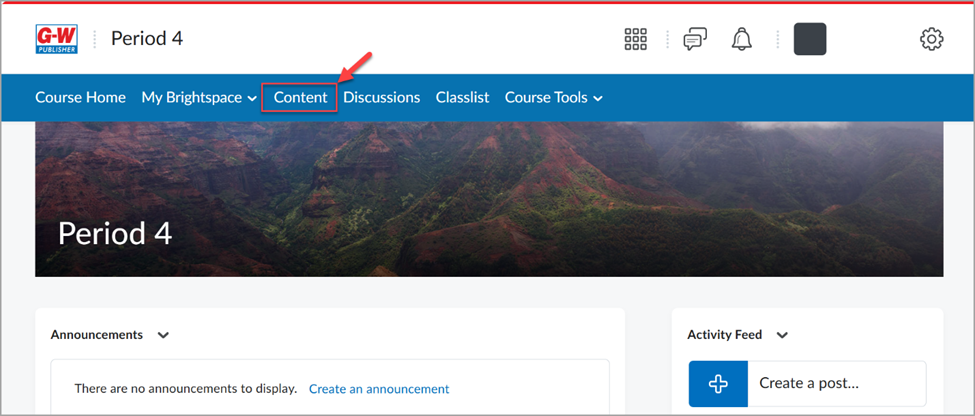
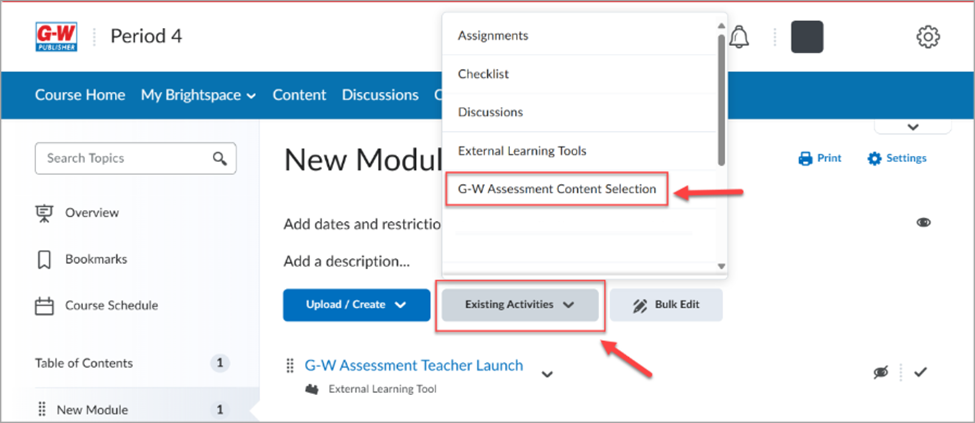
- Select "Existing Activities" and then select "G-W Assessment Content Selection"
- Use the dropdown menu to select pre-built G-W Assessment content from the "Publisher Library", or select the "My Library" tab to access your existing assessments. You can also narrow your list down by using the "Search" feature.
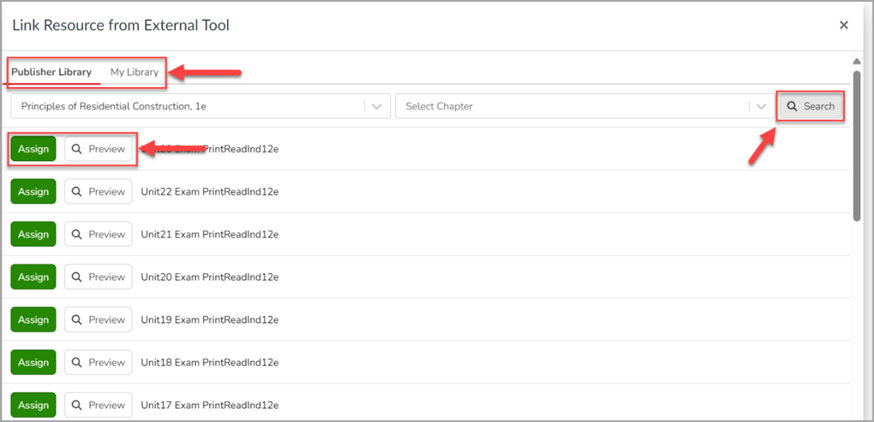
- Once you have located the assignment, you can:
- Preview – Select "Preview" to view the assignment.
- Assign – Select "Assign" to assign this assessment to your students.
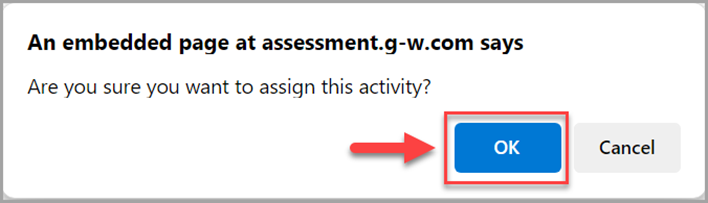
- Select "Assign", then confirm by selecting "OK" on the pop-up modal.
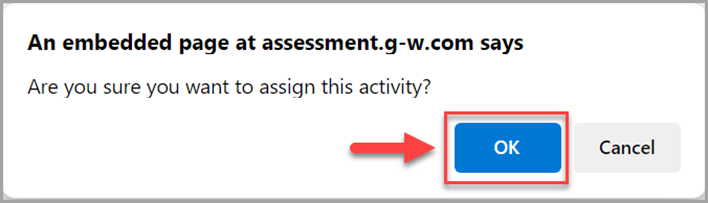
- The Assessment will now appear in your Content
New Content Experience
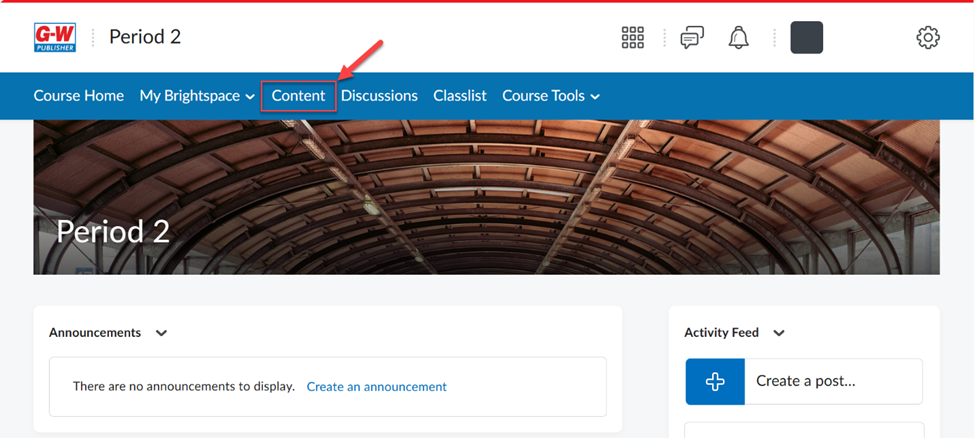
- Select "Content" from your course screen
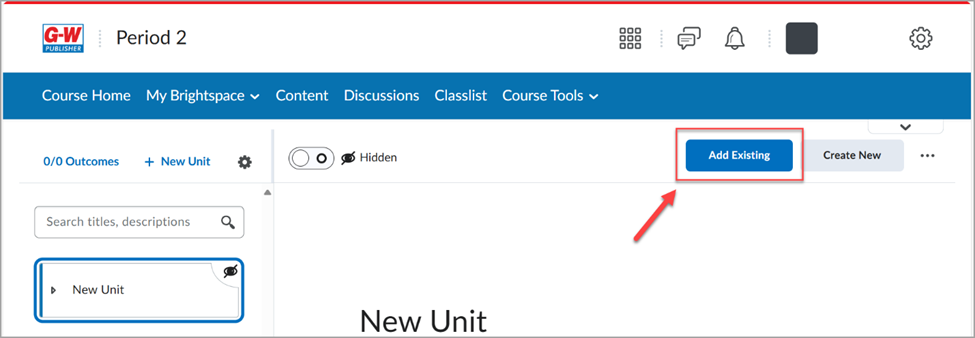
- Select "Add Existing"
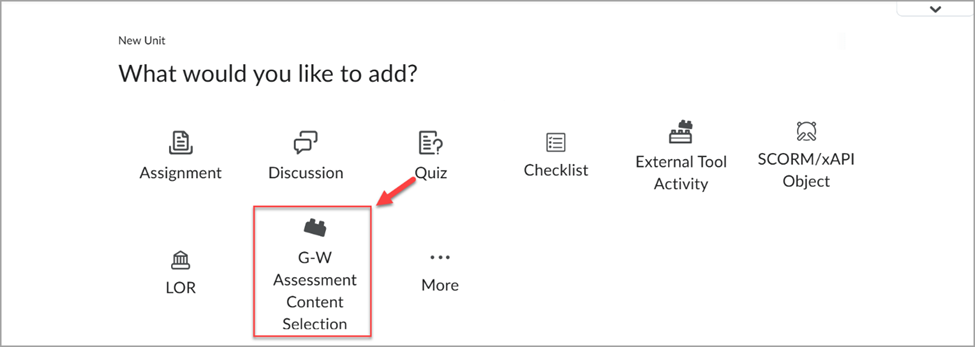
- Select "G-W Assessment Content Selection"
- Use the dropdown menu to select pre-built G-W Assessment content from the "Publisher Library", or select the "My Library" tab to access your existing assessments. You can also narrow your list down by using the Search feature.
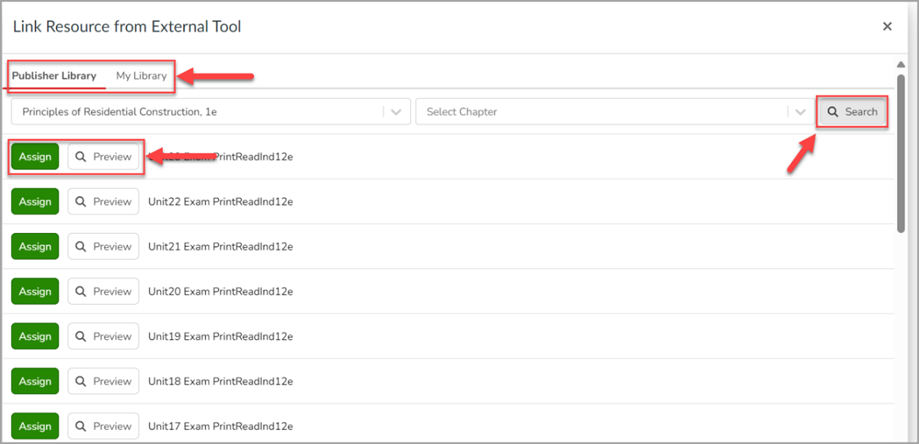
- Once you have located the assignment, you can:
- Preview – Select "Preview" to view the assignment.
- Assign – Select "Assign" to assign this assessment to your students.
- Select "Assign", then confirm by selecting "OK" on the pop-up modal.
- The Assessment will now appear in your Content.

