G-W Assessment Blackboard Learn: Connecting Your Bb Learn Course to G-W Assessment

Last updated: Jul 28, 2026
1536
views

Upon logging into Blackboard, navigate to your respective course where G-W Assessment has been integrated by your LMS administrator.
Important Note: Only one instructor can connect to G-W Assessment per course. Co-teachers and multiple course instructors in a single G-W Assessment course are not currently supported.
- Select Content from the left navigation bar.

- Select Build Content and then select "GWA Teacher Application" (name may vary depending on how this is set up by your LMS admin) from the dropdown menu.

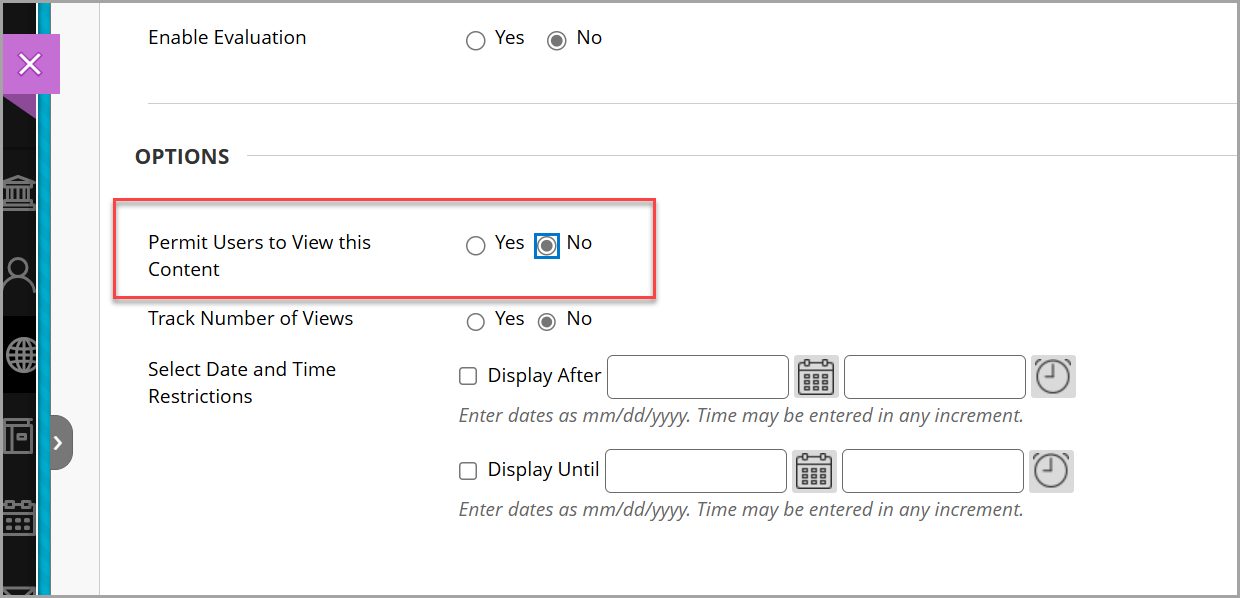
- Name the GWA Teacher Application. Under options, select No for Permit Users to View this Content.
- Select "Submit".
- Your GWA Teacher application will now appear with your content.
- Open the GWA Teacher application by selecting the link to then connect your course to G-W Assessment.

- Select the "Connect" button on the It’s time to connect your LMS Course to GW Assessment section on your screen.

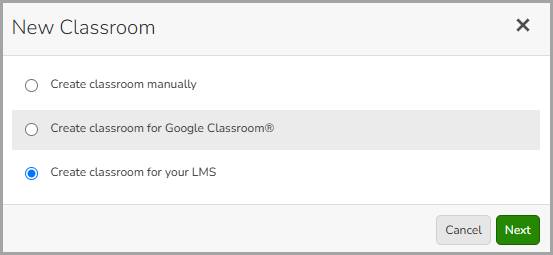
- In the New Classroom modal, select "Create classroom for your LMS" then select the "Next" button.
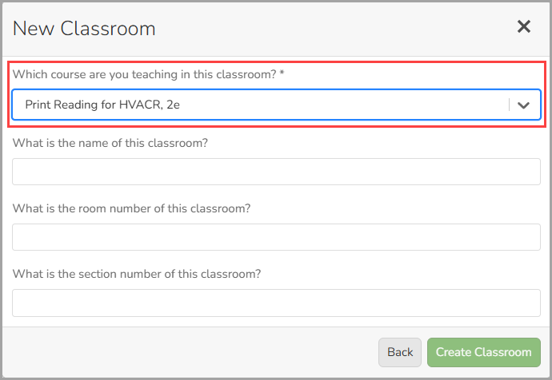
- From the drop down, select the course you will be using with your class.
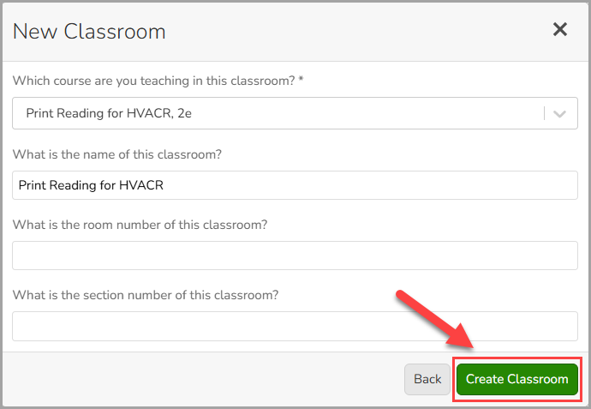
- Enter the name for your classroom then select the "Create Classroom" button. You can also add a room number and section or leave those fields blank.