

Canvas: How to Import Question Bank/Exam Files for Health Titles Copyright 2025

Last updated: Aug 11, 2026
3323
views

Both System Administrators and Instructors have the permissions to import question bank/exam files into Canvas once they have activated their subscription.
First, you'll need to download the Question Bank (QTI) Files from the Online Instructor Resources:
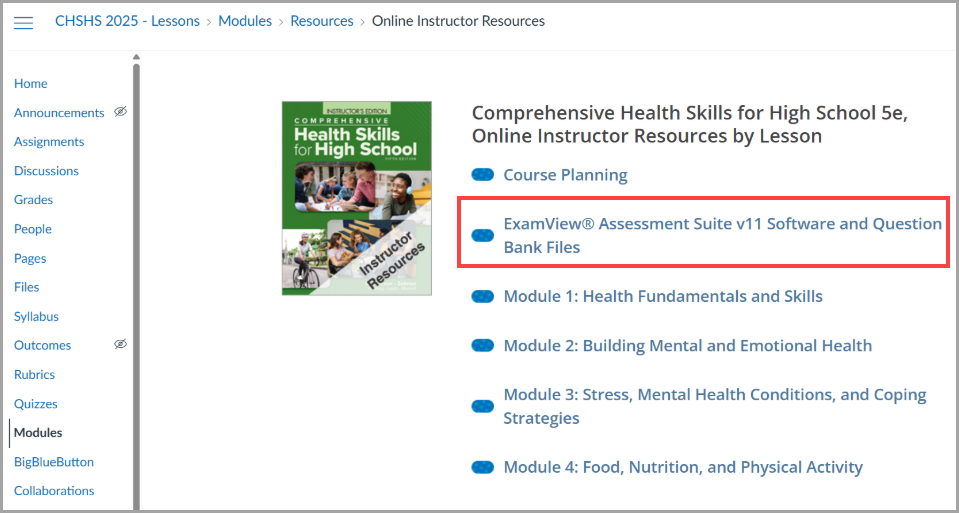
- Select the Online Instructor Resources link from your Canvas course.

- Select the ExamView Assessment Suite v11 Software and Question Bank Files link to access the question bank files for use in Canvas.
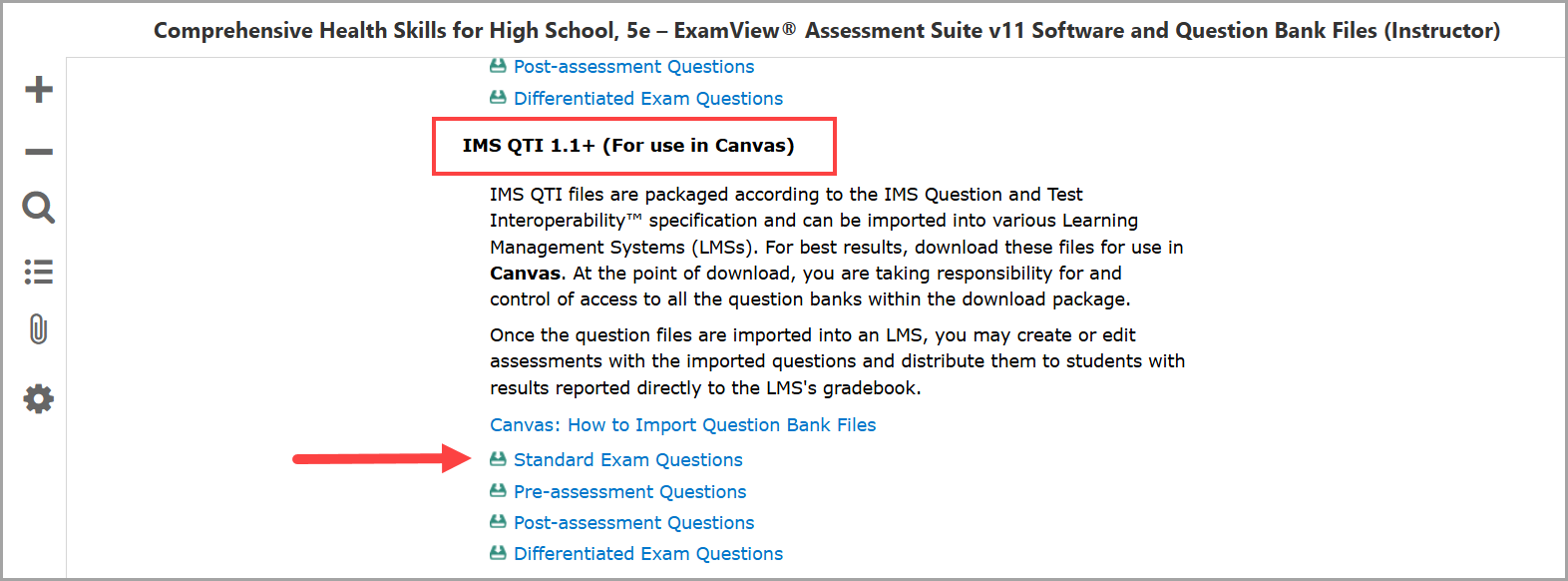
- Scroll down until you see IMS QTI 1.1+ (For use in Canvas). Here you will find four different question bank file types including Standard Exam, Pre-assessment, Post-assessment, and Differentiated Exam Questions. Select one to download the ZIP folder of assessments.
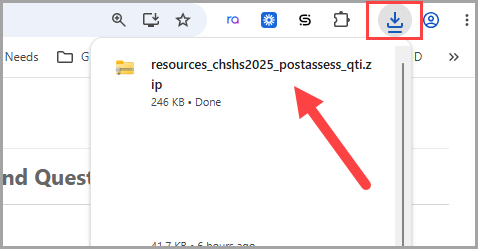
- Depending on your device, you may see the file automatically download to your local hard drive.
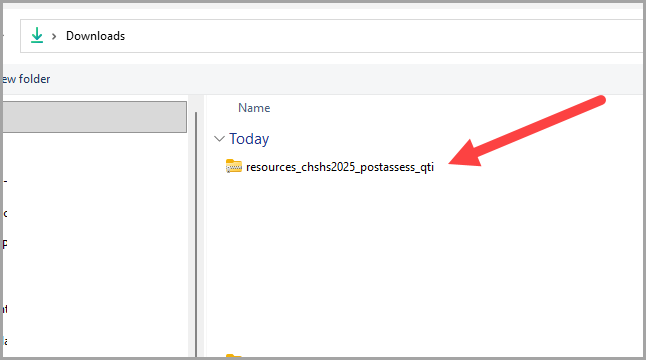
- Otherwise, you may need to open the Downloads folder to view the .zip folder recently downloaded.
- Repeat steps 3-5 until you have downloaded the ZIP folder for each question type you would like to use in your Canvas course.
Follow the steps below to Import Question Bank Files into your Canvas course:
- Go back to your Canvas course and select Settings in the Course Navigation.

- Select Import Course Content.

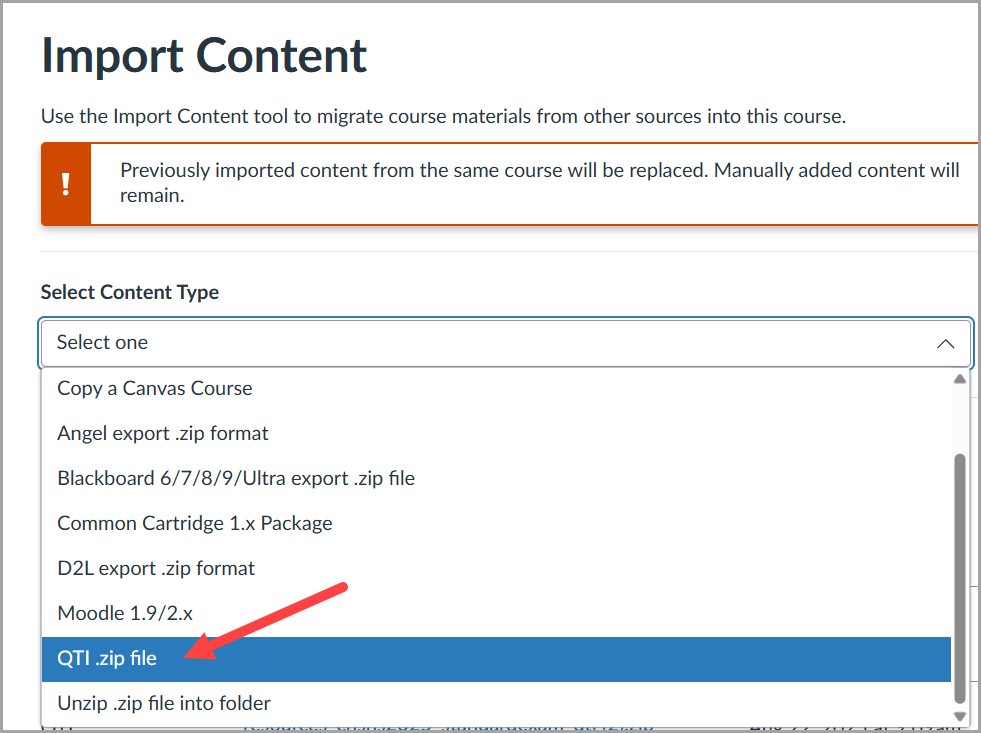
- Under Import Content, select the drop-down menu and choose QTI .zip file.
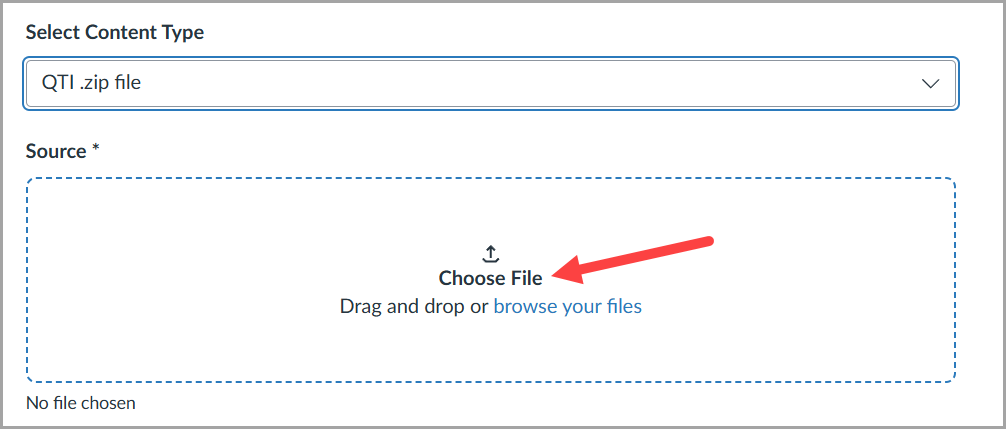
- Select Choose File (or drag and drop) to find one .zip folder to import at a time.
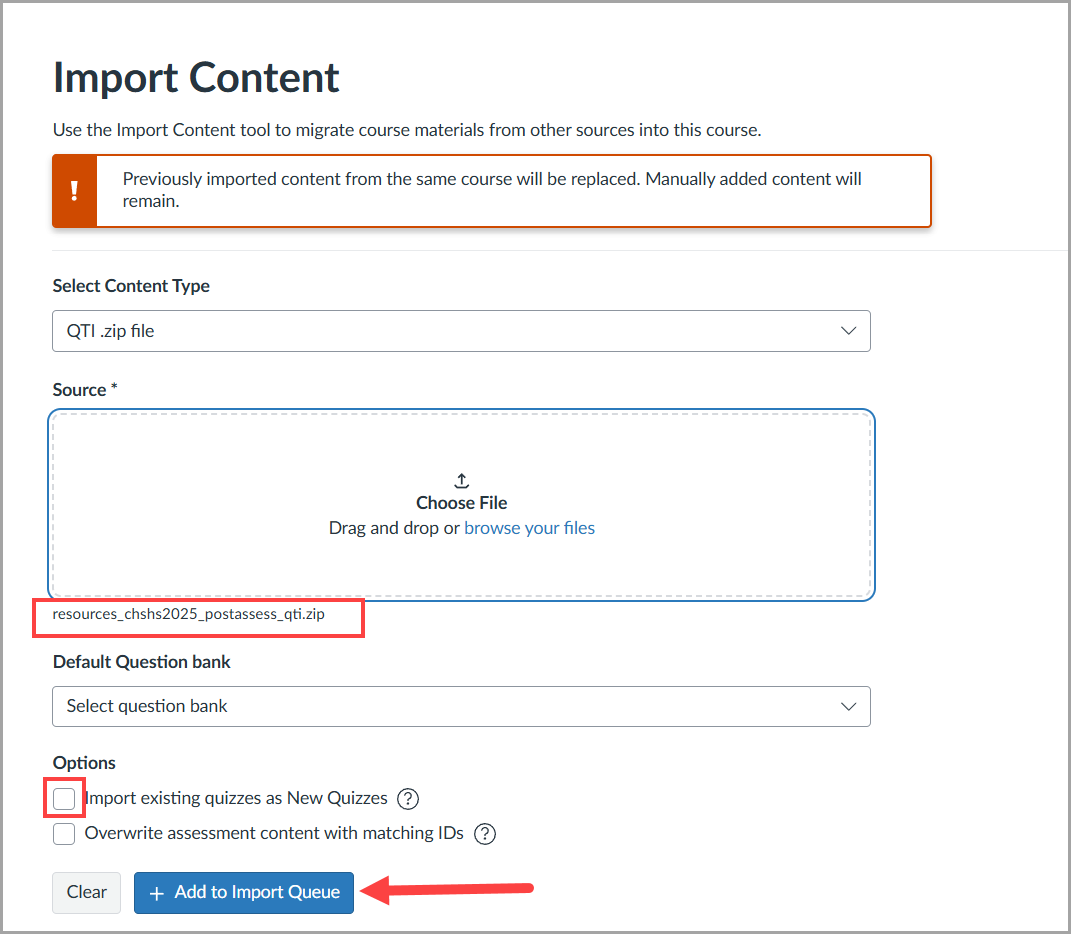
- Find the .zip folder and double click.
- Once the file appears under "Choose File," you may choose to import them as "New Quizzes" or you may select the + Add to Import Queue button.
- The QTI files will be in the queue until they have fully imported and will show Completed under Status.

- Repeat Steps 3-7 until you have all question bank file types (pretest, posttest, etc.) you would like in this course.

