

G-W Ignite Instructor: How to Export the Standards Report

Last updated: Jun 24, 2026
1190
views

Steps to Export the Standards Report
-
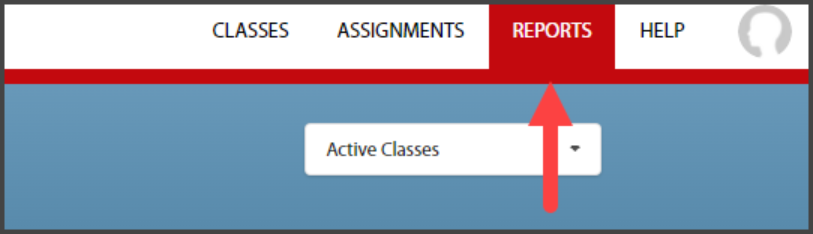
After logging in to your G-W Ignite account, select “Reports” in the upper right-hand corner of your Dashboard.
-
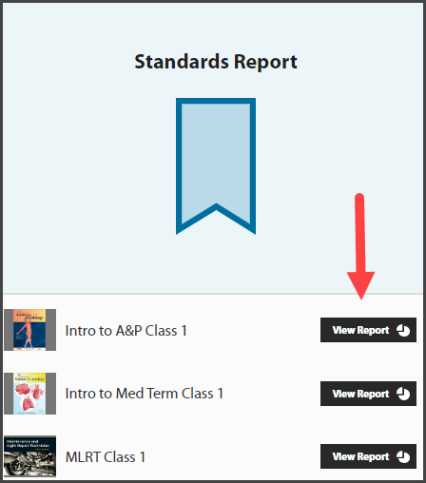
Underneath Standards Report, select “View Report” to the right of the course you want to view the Standards Report for.
-
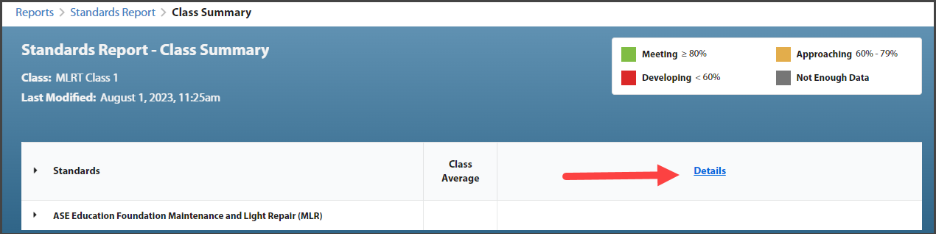
On the Class Summary Page, select “Details” to expand the Standards Report.
-
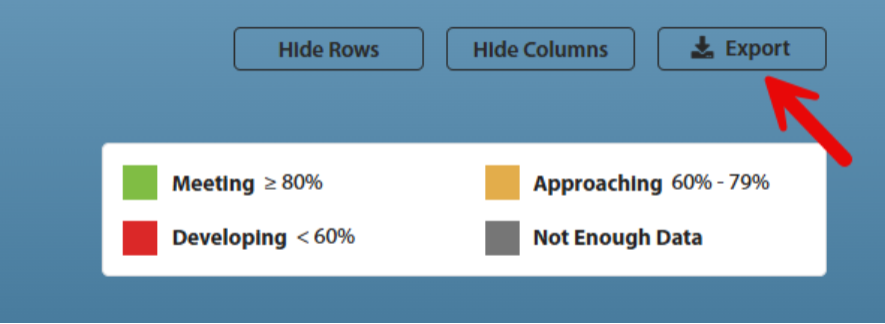
In the upper right, select “Export”.
-
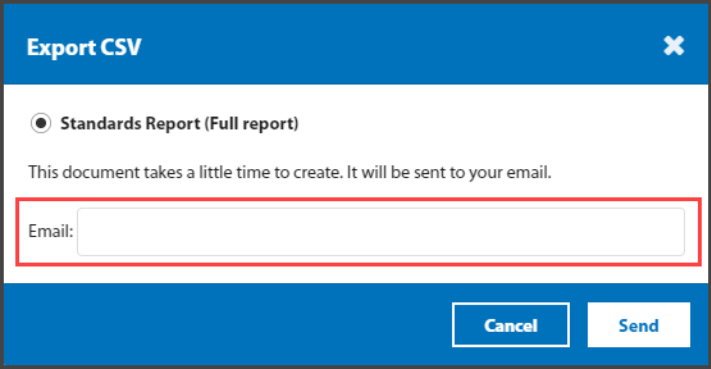
Enter the email that you would like the Standards Report sent to. Select “Send”.
-
You will receive an email with the link to your report. Select the link in the email and an automatic download will start. Once the download is finished, select the Excel file to open the report.

