Moodle: How to Create Quizzes in a Moodle Course

Last updated: Jul 27, 2026
1790
views

Assessment files import as editable question banks. Once the question bank files have been imported into Moodle (See: How to Import Question Bank Files into Moodle), an Instructor may now add the assessments to their course.
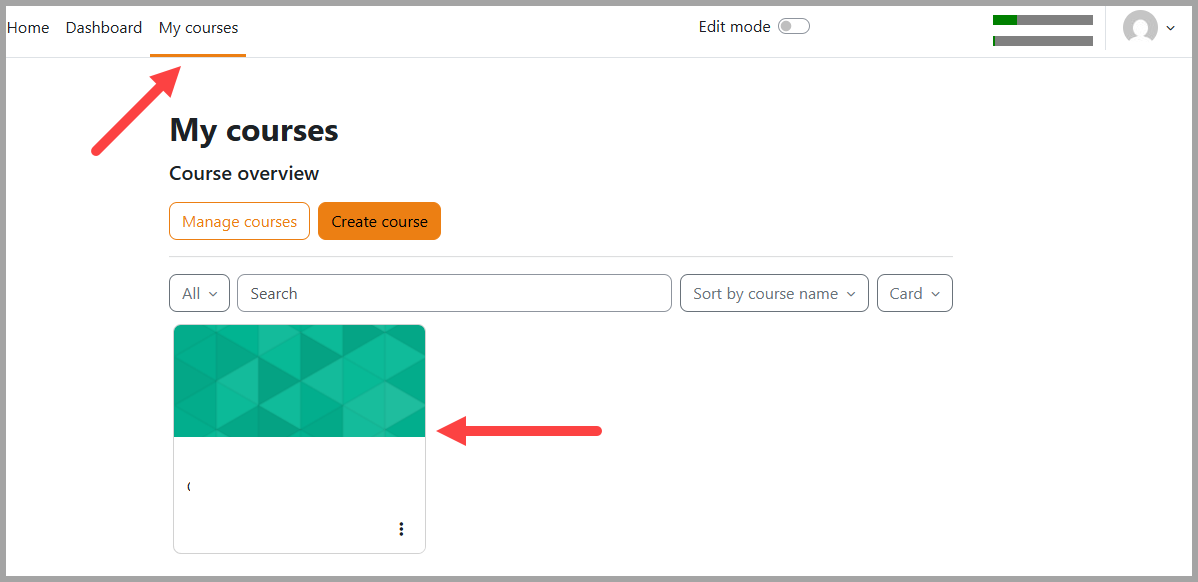
- After importing the question bank files into Moodle, select a specific course from your "My courses" tab to which you would like to add quizzes/assessments.
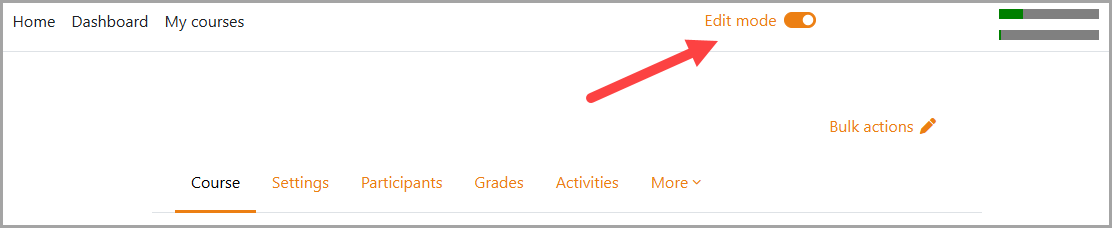
- Select "Edit mode" to turn it on.
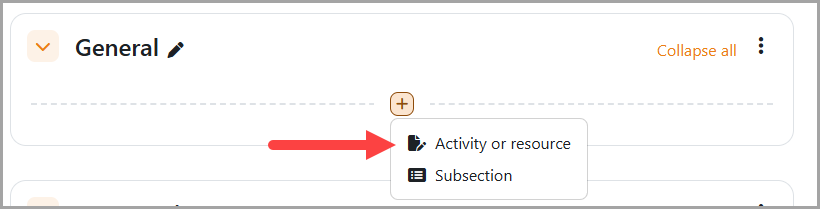
- Select the "+" button and select "Add an activity or resource".
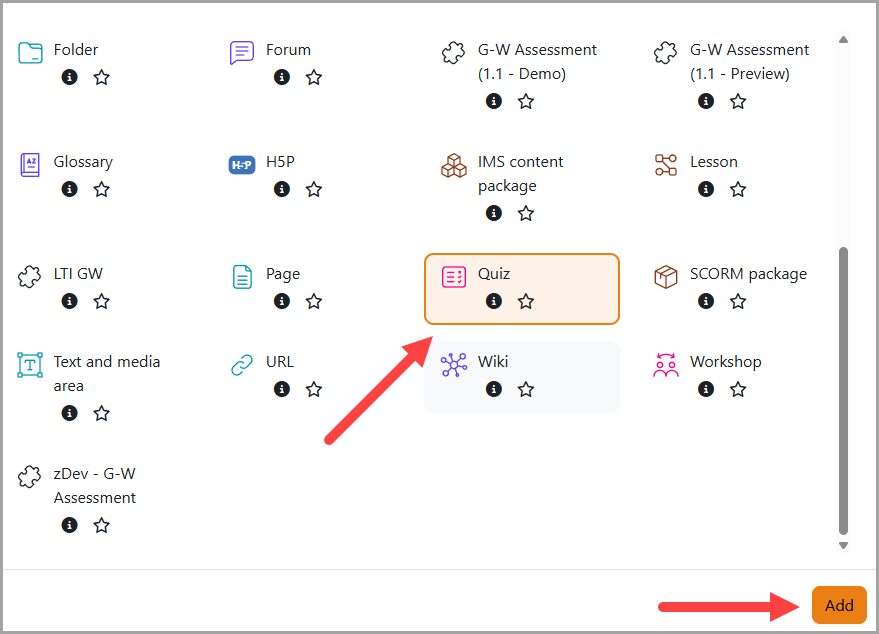
- Select "Quiz", then select "Add".
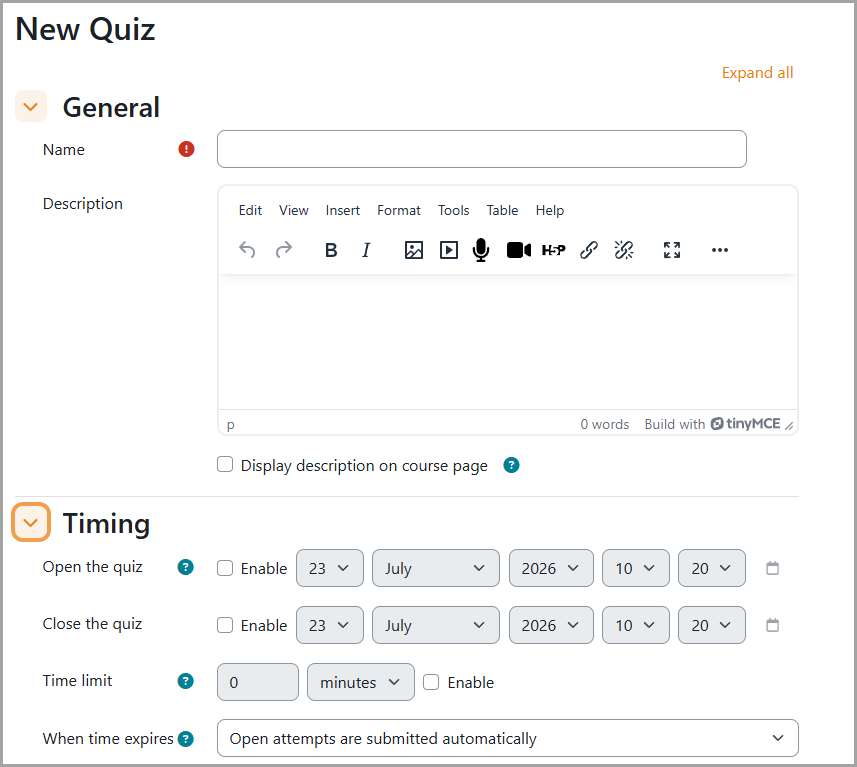
- Enter a Name, Description, Timing, and any other available features.
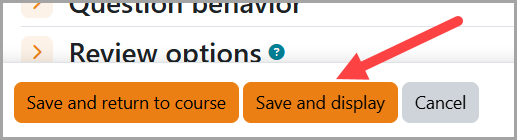
- Select "Save and Display".
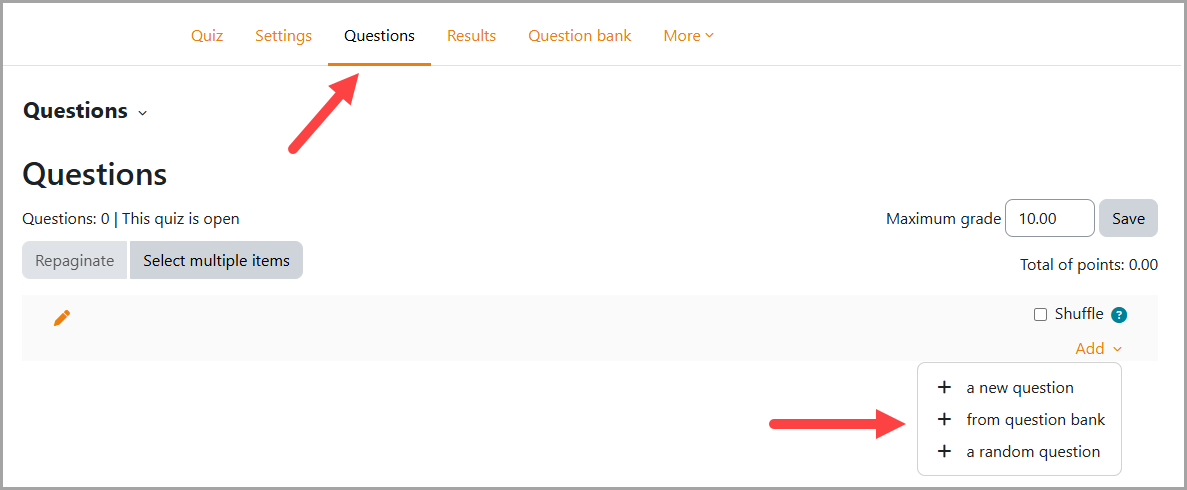
- When editing the quiz, select the Questions tab, select the "Add" drop down menu, and select "+ from question bank".
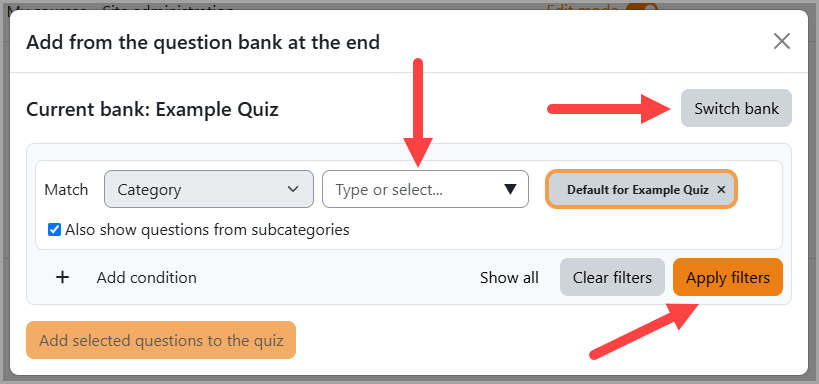
- Select the drop-down menu next to Category and choose the Default course level category in which the exam files have been uploaded. You can also select Switch bank to change the bank in use. Select "Apply filters".
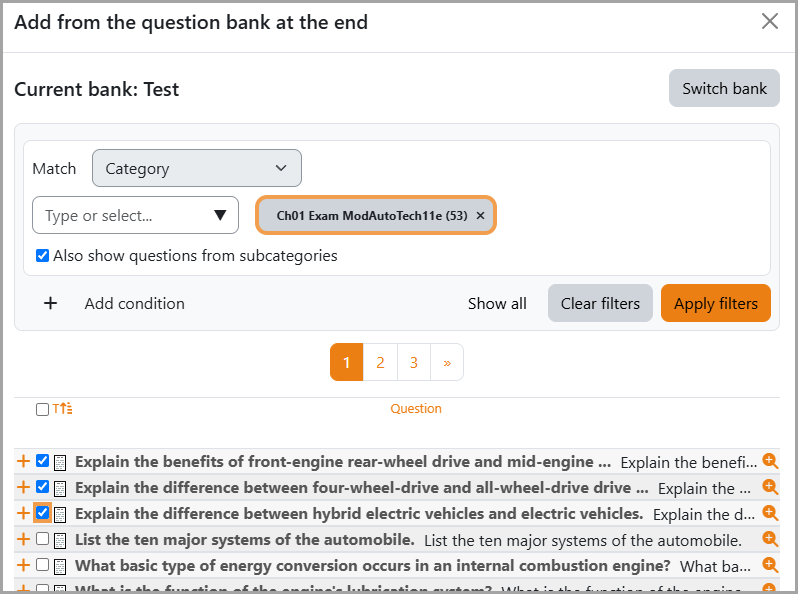
- Use the checkboxes to select all questions or select individual questions to add them.
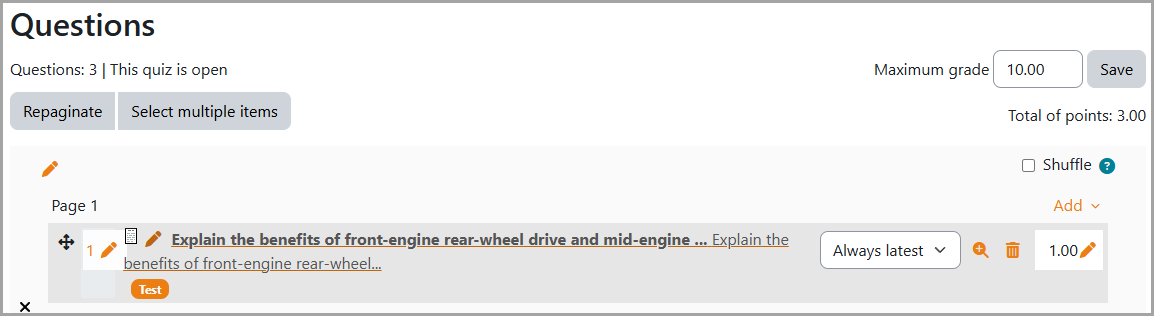
- Adjust max grade if desired. Adjust point values for individual questions, if desired.
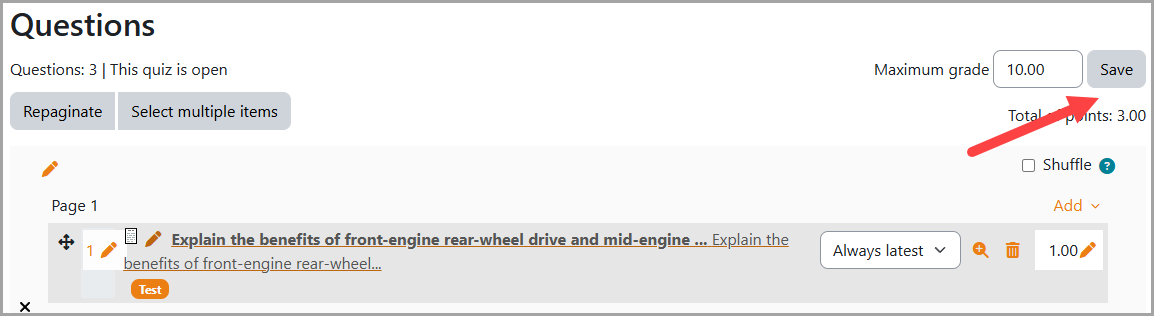
- Select "Save".
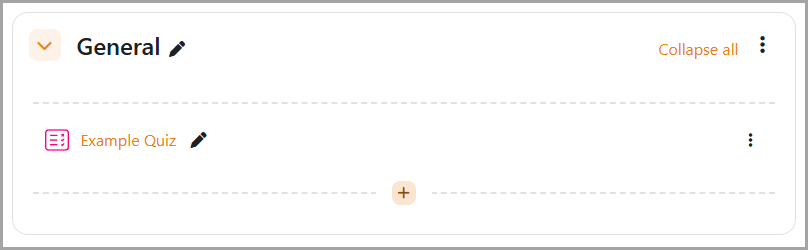
- When you return to the main course page, you will see the assessment is available to students.