

G-W LTI 1.3 Setup for Schoology

Sep 15, 2026
290

- Log in to your Schoology system administrator account.
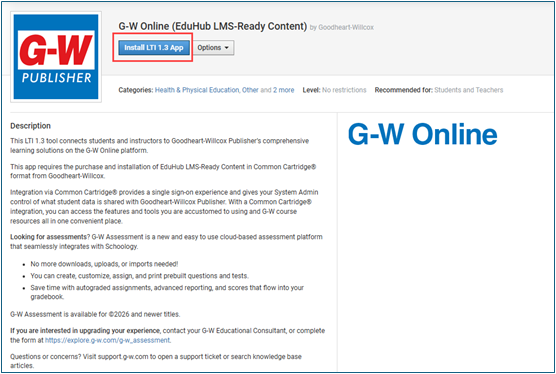
- Go to the App Center page for the “G-W Online (EduHub LMS-Ready Content)” app. https://schoology.schoology.com/apps/profile/8202513743
- Select “Install LTI 1.3 App”.
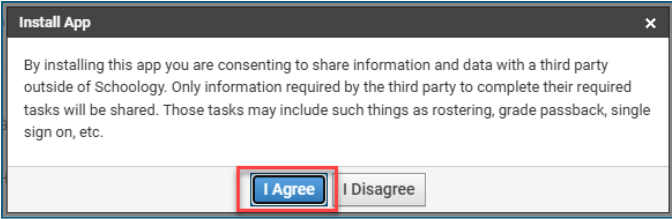
- A popup message will appear. Select “I Agree” to proceed.
- In the navigation bar, select the “Apps Center” icon (
 )
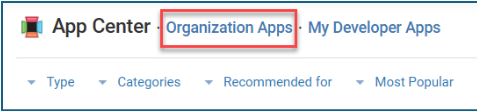
) - Select “Organization Apps”.
- Find the G-W Online (EduHub LMS-Ready Content) app in your list and select “Configure”.

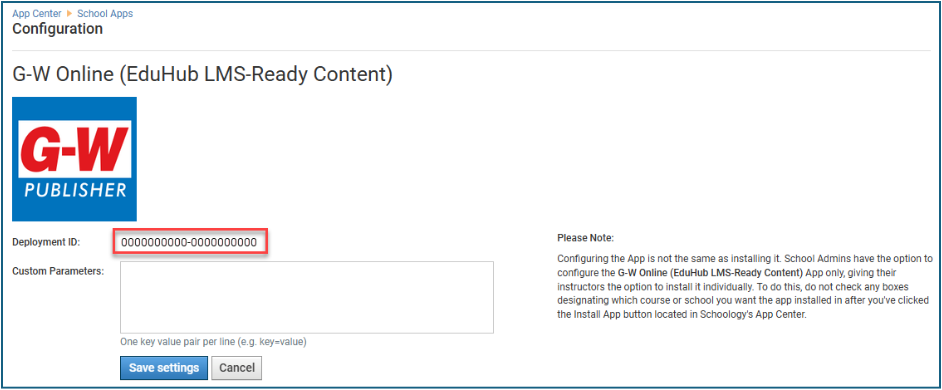
- A window containing your Schoology Deployment ID will appear. Share this Deployment ID and your district’s Schoology URL with G-W by replying to your support ticket.
-
The Client ID is the first portion of the Deployment ID.
-
The Deployment ID is the full value.
-
-
Select "Cancel”.
-
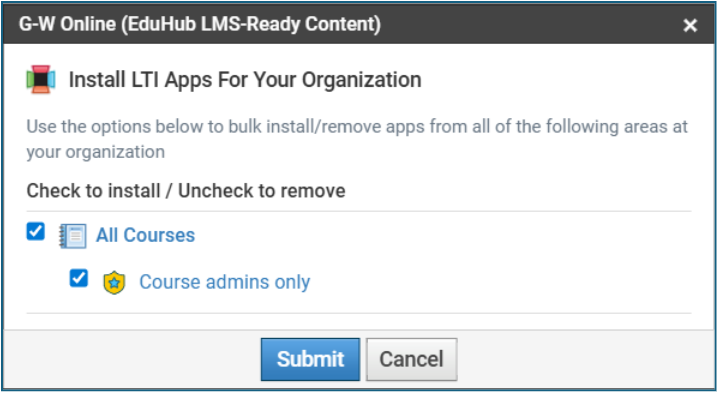
Find the G-W Online (EduHub LMS-Ready Content) app in your list and select “Install/Remove”.

-
Select “All Courses” or the relevant boxes for the areas and/or course members you wish to install the app, then select “Submit”.
-
Next to the G-W LTI 1.3 app added, select “Configure”.
-
The G-W Online (EduHub LMS-Ready Content) LTI tool should now be available to the course members specified.

